
Using the Kintone mobile app for Android
On the Kintone mobile app, you can receive push notifications from Kintone. This enables you to check notifications quickly while you are outside the office.
How to download the mobile app
To use the mobile app on your Android device, download the app on the device.
Access the following link, search for "Kintone", and tap Install.
Google Play

System requirements
How to update the mobile app
On your Android device, update the mobile app.
Access the following link, search for "Kintone", and tap Update.
Google Play
Setting up the mobile app
When you install the mobile app for the first time, you need to set it up following the steps below:
-
Tap the icon of the mobile app you have downloaded on your Android device.
-
Enter the Kintone subdomain you wish to access and then tap Next.
The subdomain is the character string that appears before "kintone.com" in the Kintone URL.
You can check the URL in the address bar of your web browser when you have Kintone open.
https://.kintone.com/k/ 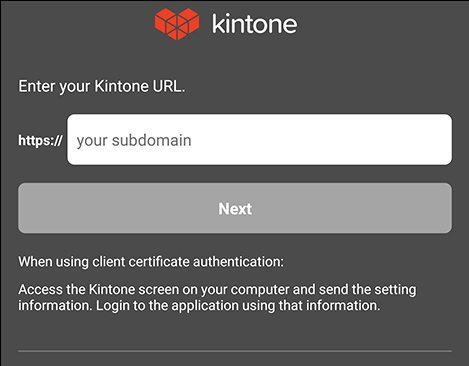
Perform one of the following actions depending on your environment.
If you are logging in with single sign-on (SSO)
- Enter the login name and password for the service that is being used with SSO, then log in.
If you are logging in with your Kintone login name and password
-
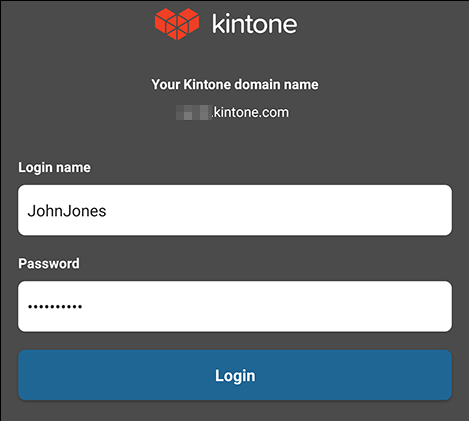
Enter your Kintone login name and password, then tap Log In.
-
If two-factor authentication is enabled, enter the verification code after tapping Log In.
Launch an authentication app (e.g., Google Authenticator), check the six-digit verification code displayed in the authentication app, and enter the verification code on the login screen.
How can I get a two-factor authentication verification code?
What to do if you forgot your password
If you forgot your password and can't log in, you can reset your password from the Log In screen.
-
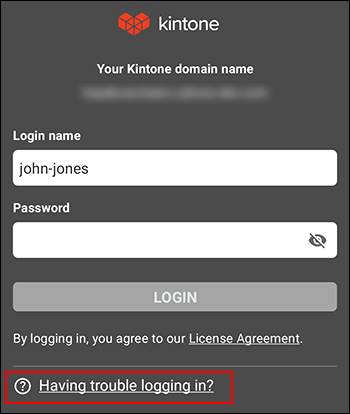
On the Log In screen, tap Having trouble logging in?
-
Follow the instructions below for your situation.
- If a Kintone users & system administrator has enabled the Allow users to reset password setting:
The page for resetting your password will be displayed. For details on how to do so, refer to the following page.
Resetting password - If a Kintone users & system administrator has not enabled the Allow users to reset password setting:
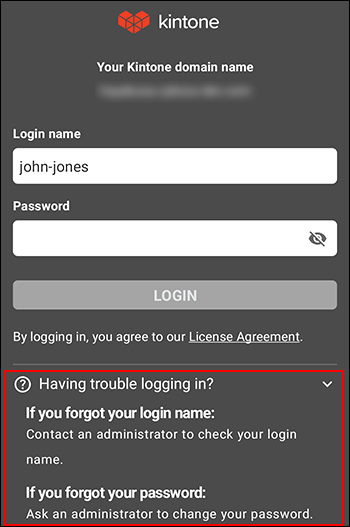
You cannot reset your password yourself. To resolve your issue, try one of the other methods shown after clicking Having trouble logging in?
- If a Kintone users & system administrator has enabled the Allow users to reset password setting:
If an error or other issue occurs
If an error or other issue occurs, it may be due to one of the following reasons.
You can't get a verification code for two-factor authentication
If you can access Kintone from a web browser on your mobile device or PC, open the Login name & password screen from the Account settings screen, and then disable two-factor authentication. After doing so, re-enable two-factor authentication and try getting a verification code again.
If you can't access the service from any device, you need to ask an administrator to disable two-factor authentication.
For details, refer to the following page.
Two-factor authentication