
How to use AI Support on Kintone β
AI Support on Kintone β is a new service that provides both AI and human support in a Kintone guest space.
This service is available in Southeast Asia and Oceania and is not offered in other regions. Human support is available only in English.
Please note that the service is currently offered in a beta version, so it may be modified or discontinued without prior notice.
Additionally, because the service is provided through a dedicated guest space for each customer, no information is shared externally.
Applying to use the service
To use the service, you need to apply.
You can do so by filling out and submitting the following request form.
Request form
Joining the dedicated support guest space
After you apply to use the service, an invitation email will be sent to the address you entered on the request form. The email should be from "Kintone". Click the URL in the invitation email to join the dedicated support guest space.
For the steps to join a guest space, refer to the following page.
If your company is already using Kintone
Accessing the dedicated support guest space
Log in to Kintone, then access the dedicated support guest space from your Kintone portal.
For information on how to use your Kintone portal, refer to the following page.
Portal overview
Overview of the "Support Request" screen
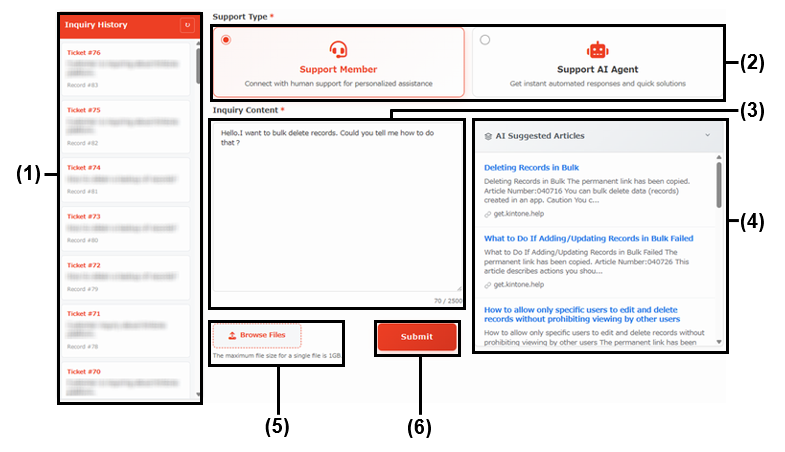
(1) "Inquiry History"
Your past inquiries are displayed here. Click an inquiry to view its details.
(2) "Support Type"
Select the type of support that you want. You can choose either human or AI support.
(3) "Inquiry Content"
Enter your inquiry here.
(4) "AI Suggested Articles"
When you enter your inquiry in the Inquiry Content section, links to related Help articles are automatically displayed here.
(5) The "Browse Files" button
Use this button to attach files. Each file can be up to 1 GB in size.
(6) The "Submit" button
Use this button to send your inquiry.
Contacting support
To send an inquiry, follow the steps below.
-
In the dedicated support guest space, click Go to Support under Apps to open the Support Request screen.
-
Select a support type.
-
Enter your inquiry.
-
If necessary, attach files to your inquiry.
-
Click Submit.
If you selected the AI agent support type, an answer will appear shortly after you complete Step 5. If you selected human support, refer to the section below for the steps to check the reply to your inquiry.
Checking replies from support
Checking replies from support
-
Open the notification you received about support replying to your inquiry. You'll be notified in one or both of the following ways.
- A Kintone notification
- An email sent to your email address registered with the dedicated support guest space
-
Click the URL in the notification or email.
-
Check the reply from support.
Asking additional questions
-
Open the screen showing the reply from support.
-
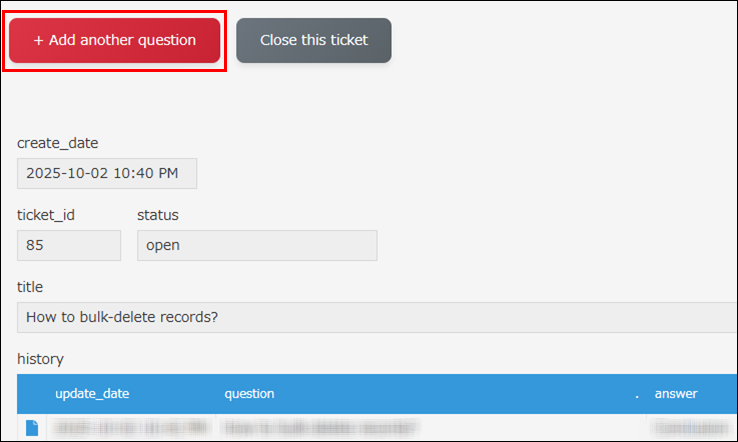
Click Add another question.
-
Ask your additional questions on the Support Request screen.
For the steps to enter and send your additional questions, refer to the following section.
Contacting support
Closing an inquiry
-
Open the screen showing the reply from support.
-
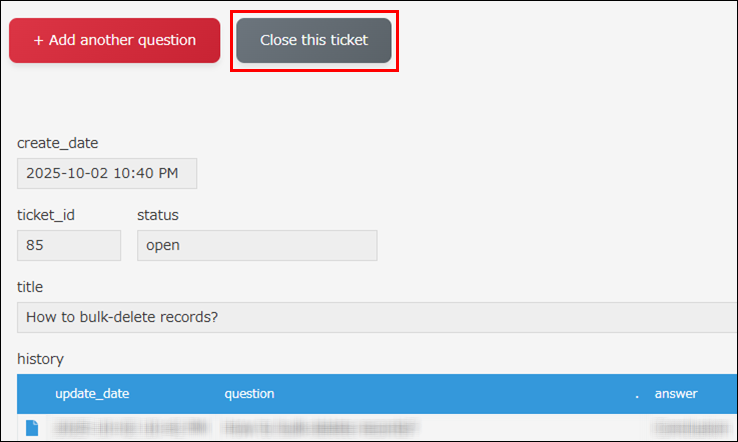
If your issue has been resolved, click Close this ticket.
Changing your registered information
If you want to change your registered information (for example, changing, adding, or deleting an email address), please contact support from the Support Request screen.
For the steps to do so, refer to the following section.
Contacting support