
Checking "Users & system administration" for the number of guest account licenses needed
You can also check the number of guest account licenses needed for your Kintone environment from Users & system administration.
-
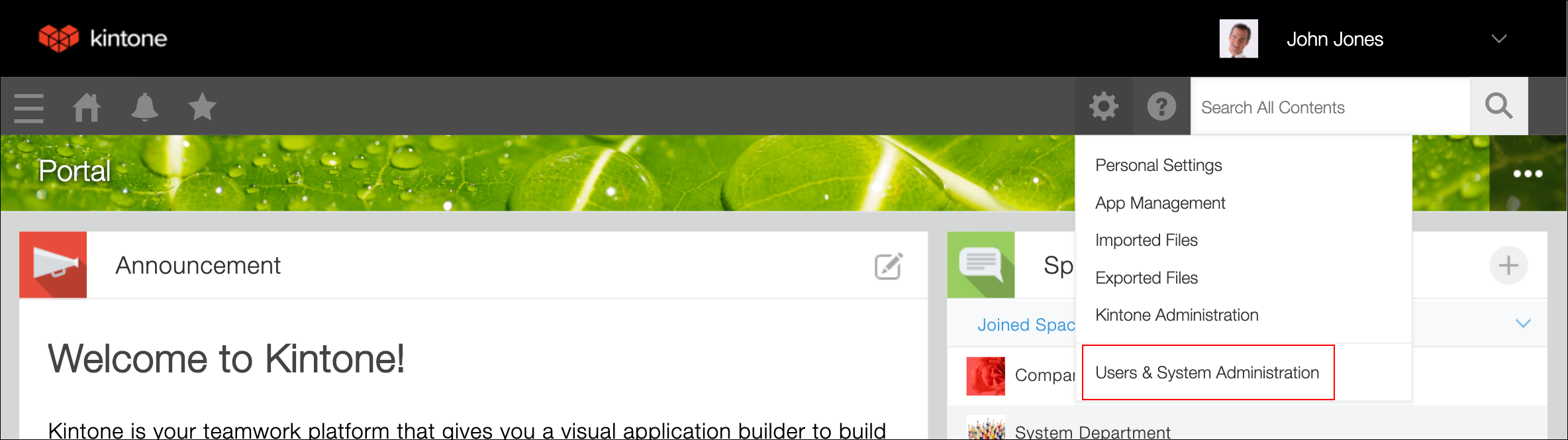
Click the Settings icon (the gear-shaped icon) at the top of Kintone.
-
Click Users & system administration.
-
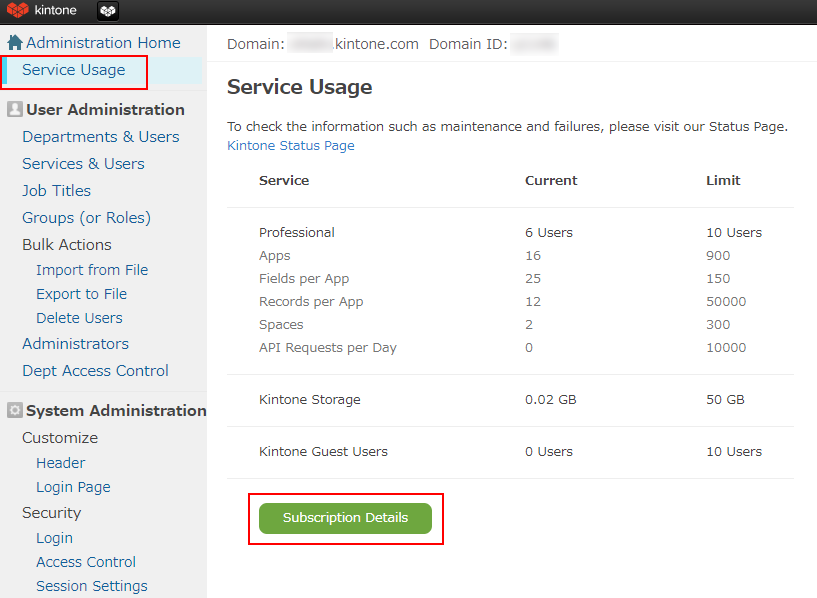
On the Service usage screen, click Subscription details.
Your subscription details will be displayed.
-
Check Guest Users in the Options section.
The number shown under Purchased Guest Account Licenses needs to be equal to or larger than the number shown under Guest Users in Use.
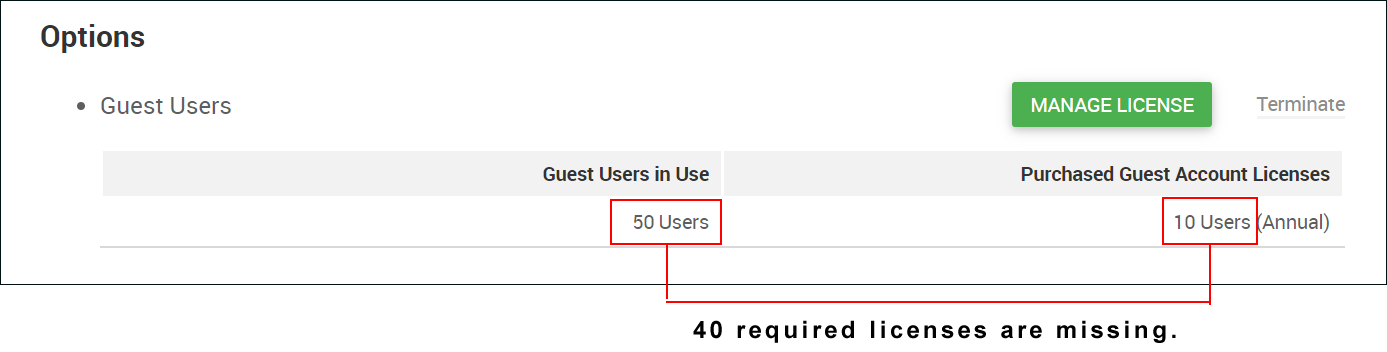
- Guest Users in Use: Guest accounts in use
- Purchased Guest Account Licenses: Available guest account licenses
If the number of licenses is less than the number needed
If the number shown under Guest Users in Use exceeds the number shown under Purchased Guest Account Licenses, a warning message appears in the Options section.
A notification email will also be sent to the email addresses registered under [Sold To Contact] and [Bill To Contact] in your contact information.
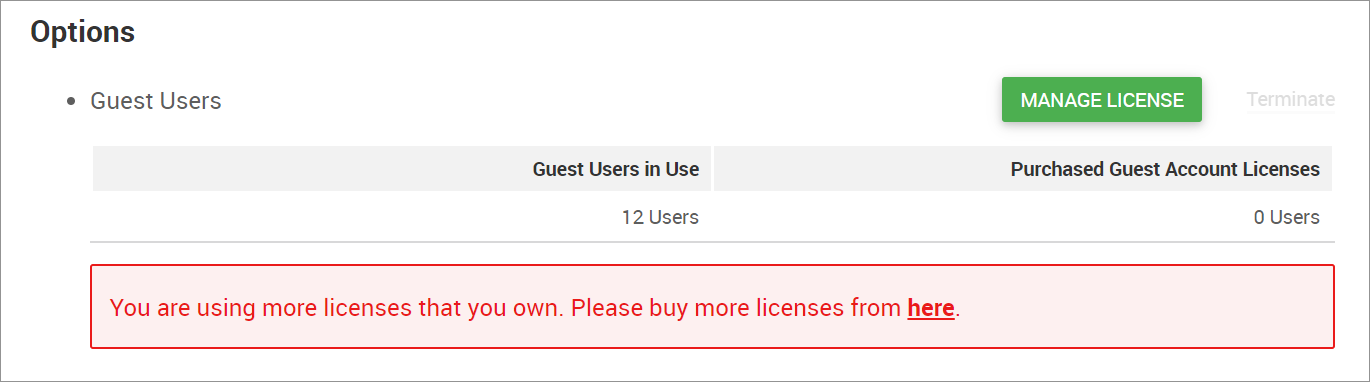
The warning message is displayed when the user license limit is exceeded, and cannot be hidden until necessary action has been taken.
Email notifications will continue to be sent until the required action has been completed.
For details on the necessary actions, refer to the following page.
When the number of guest account licenses is less than the number needed